
CHEF User Manual
How to build a dish, read its environmental and nutrition results, make labels and certificates, and manage a whole menu.
Quick start: your first dish in a minute
- Open CHEF and type a dish name, such as chicken tikka masala, into the bar at the top of the Recipe Builder. Press Enter.
- Check the ingredients and weights in the review table, then press Import Selected Items.
- Read the grade (A–E) in the Overall Dish Rating, and change weights or swap ingredients to see it move.
- Press Download Label to make a label for your menu.
1. The screen at a glance
On a phone the panels stack: recipe first, then the analysis, the results and the recipe library.
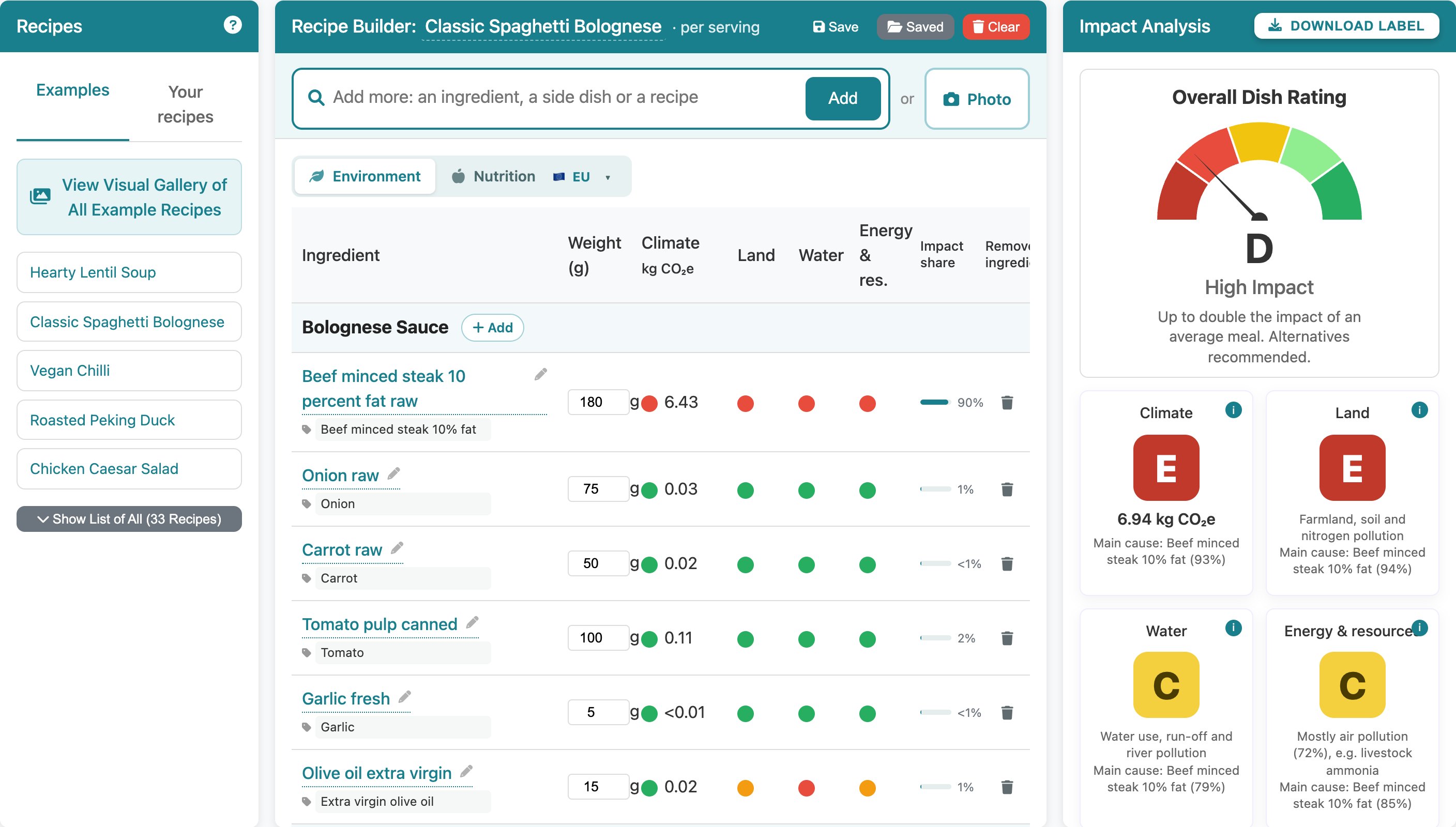
In the pictures, an orange ring (and arrow) shows where to click.
The menu at the top right links to the FAQ, the example dish gallery, feedback and (for Pro users) the method and data sources. The ? in the Recipes panel opens a short in-app guide.
2. Free, free account and Pro
You can use CHEF without signing in. A free account (just your email) lets you download the Lite label. Pro costs £21 for 12 months, with no automatic renewal, and is free for academic email addresses (ac.uk, sch.uk, edu).
| Feature | No account | Free account | Pro |
|---|---|---|---|
| Build dishes (typing, AI, photos, paste, spreadsheet import) | ✓ | ✓ | ✓ |
| Overall A–E rating and the Climate, Land, Water, and Energy and resources grades | ✓ | ✓ | ✓ |
| Nutrition tab, nutrition table and warning colours (UK traffic lights) for the dish | ✓ | ✓ | ✓ |
| Nutrition labelling for 10 markets in the app, with their scores (Nutri-Score, UK HFSS, Canada "High in", warning seals, Health Star Rating and more) | ✓ | ✓ | ✓ |
| Allergens, pork and alcohol flags, ingredient list for labels, cooked weight, batch totals | ✓ | ✓ | ✓ |
| Save recipes and the Menu Overview (with costs, GP and CSV) | ✓ | ✓ | ✓ |
| Download the Lite label (EU nutrition declaration) | – | ✓ | ✓ |
| All 16 PEF indicators in the app (Pro view) | – | – | ✓ |
| Full nutrient breakdown (Expand) and the full USA Nutrition Facts panel | – | – | ✓ |
| Pro certificate (PDF) for any of the 10 markets, with optional comparison pages | – | – | ✓ |
| Ingredient data download (CSV) | – | – | ✓ |
| Compare two dishes side by side | – | – | ✓ |
Features marked PRO in this manual need Pro.
3. Building a dish
Everything starts from the input bar at the top of the Recipe Builder. The Recipe Builder always shows one serving.
3.1 Type a dish name
Type a dish, such as beef lasagne or vegetable pad thai, and choose Work out the ingredients for… (or press Enter). AI suggests typical ingredients and weights for one serving, which you then review (section 3.5).

3.2 Type or paste ingredients
- One ingredient: type onion or onion 80g and pick it from the suggestions. With no weight, a typical amount is used.
- Several on one line: onion 80g, carrot 50g, celery 20g.
- A whole recipe: paste the ingredient list from a recipe or a document. Kitchen measures are understood: cups, tablespoons, cloves, pieces, handfuls, ounces, pounds and pints, and fractions such as 1½.
3.3 Use a photo
Press Photo, or paste or drop an image onto the bar. CHEF reads a photo of a plated dish or of a written recipe and suggests the ingredients.
3.4 Start from a recipe
- Examples: the Recipes panel has over 30 example dishes. The Visual Gallery shows them with photos.
- Your recipes: dishes you have saved (section 9).
- A spreadsheet: under Your recipes, press Import recipes from a spreadsheet (CSV or Excel), or drop the file on the bar. Columns are found from their headings: dish name, ingredient, quantity and unit, and optionally servings, ingredient cost, cost per serving and menu price. Headings and kitchen units can be in English, French, German, Spanish, Italian or Dutch.
3.5 The review table
AI results, pasted recipes and imports open a review table before anything is added. For each line you can:
- check the database match and pick another from the list, or untick it to leave it out;
- correct the weight;
- set Serves if the recipe makes more than one serving, so the weights are divided down to one serving.
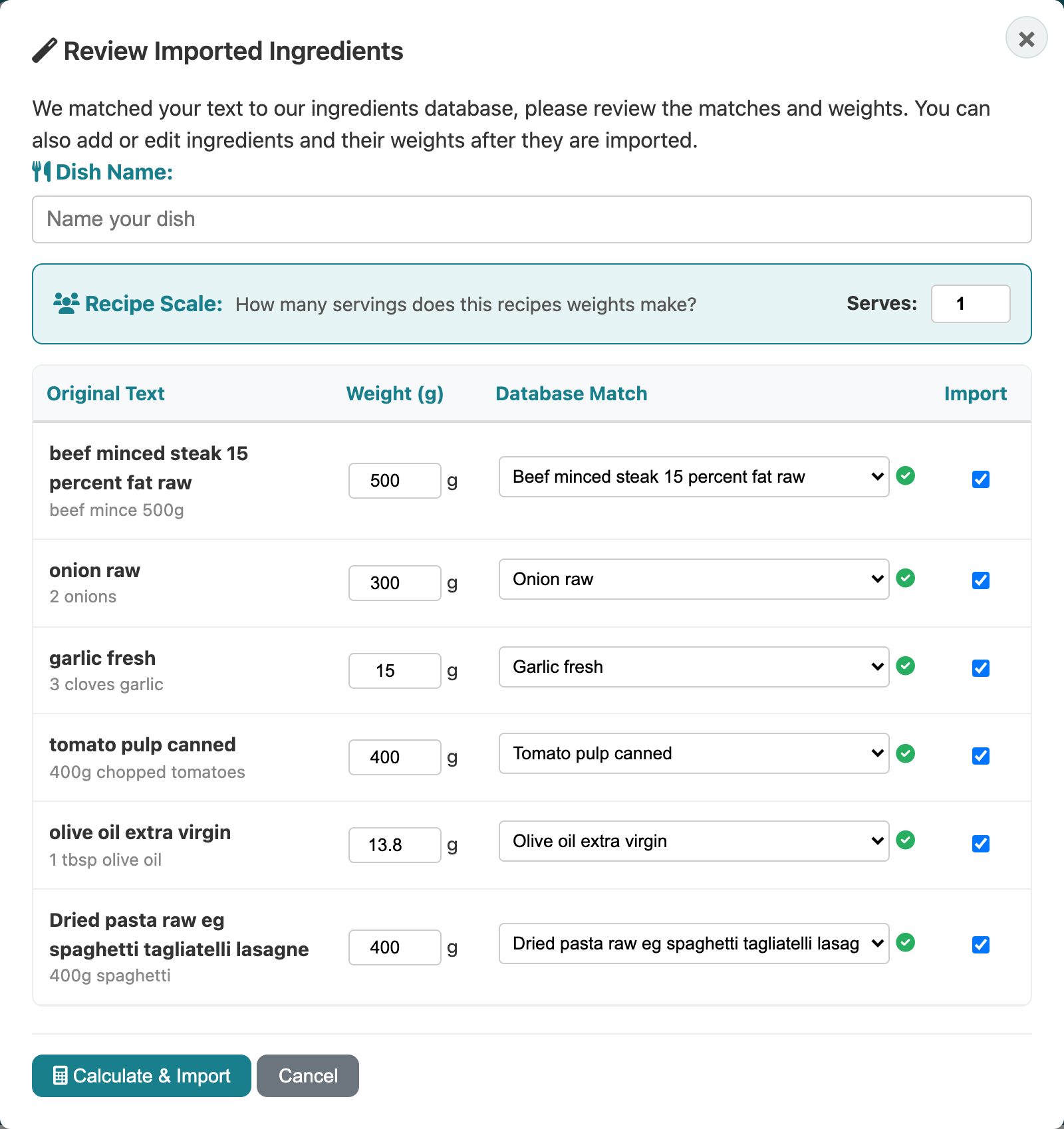
Cooked pasta, rice, grains and pulses are converted to their dry weight, so the environmental data matches what you buy. Items marked AI were translated or broken down by AI (for example a spice blend split into its spices); check them.
3.6 Dishes with parts
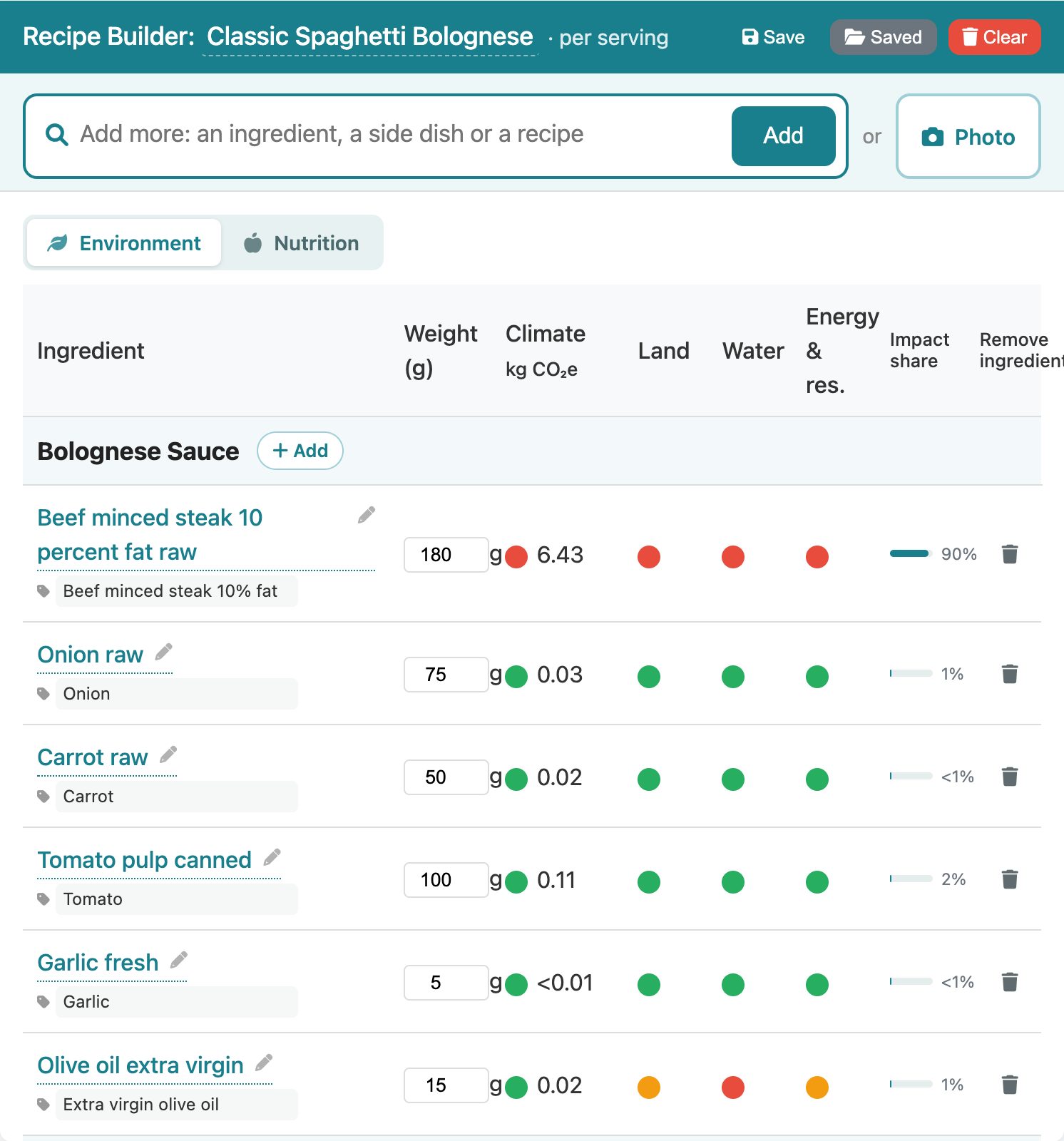
A dish can have parts, such as a sauce, the pasta and a garnish, each with its own heading. Adding to an existing dish (for example a side) creates a new part. To add something to a particular part, press + Add on its heading; the bar shows which part you are adding to.
4. Editing a dish
- Dish name: click the name in the Recipe Builder header to change it.
- Weights: type a new weight in any row; everything updates as you type.
- Swap an ingredient: click its name to search for a replacement.
- Label name: the small tag under each ingredient is the name used on labels (for example Beef mince rather than Beef minced steak 15 percent fat raw). Click it to edit.
- Dry or cooked: for pasta, rice and similar, the Dry / Cooked switch shows the weight either way and keeps the plate weight the same.
- Remove: the bin icon at the end of the row. Clear empties the whole dish.
- Save: Save keeps the dish in Your recipes; Saved opens them.
5. Reading the environmental results
5.1 Overall Dish Rating
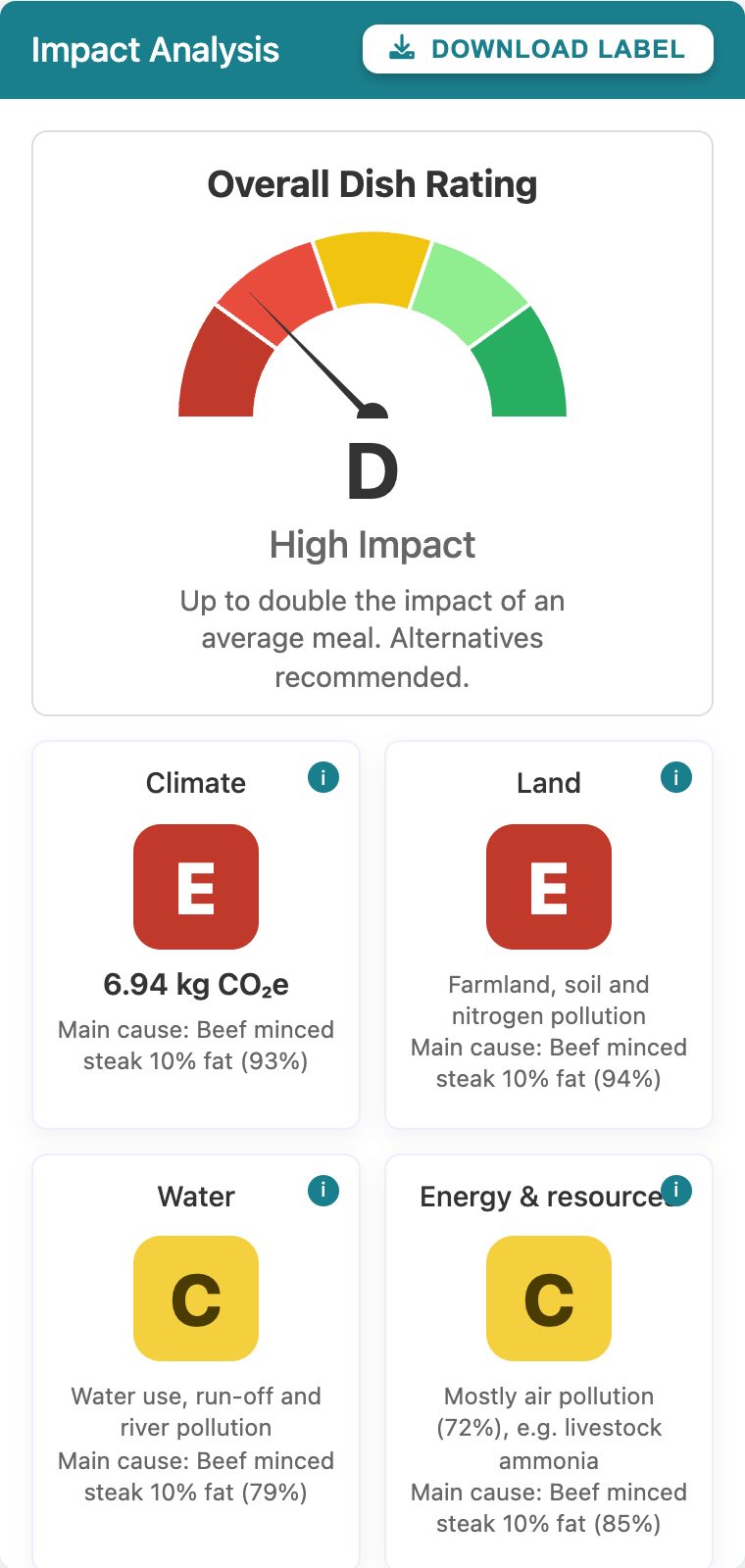
The gauge gives the dish a grade from A (lowest impact) to E (highest). It combines all 16 environmental indicators of the EU's Environmental Footprint method and compares the dish with an average meal's share of today's footprint. Grade C/D is about an average meal; each grade up or down halves or doubles the impact.
5.2 The four grade cards
Climate (with kg CO₂e per serving), Land, Water, and Energy and resources each have their own A–E grade and name the ingredient that causes most of it. Press the i on a card to see the indicators behind it.
5.3 The Environment tab of the recipe table
- Coloured dots show each ingredient's impact per kg in each area: green (lower half of all ingredients), amber, or red (top 10%). They tell you what kind of ingredient it is. Click a dot for detail.
- Impact share shows how much of the dish's impact comes from that ingredient at the weight used. It tells you how much it matters in this dish.
- The bottom row grades the whole dish.
5.4 Impact by Ingredient and Next Steps
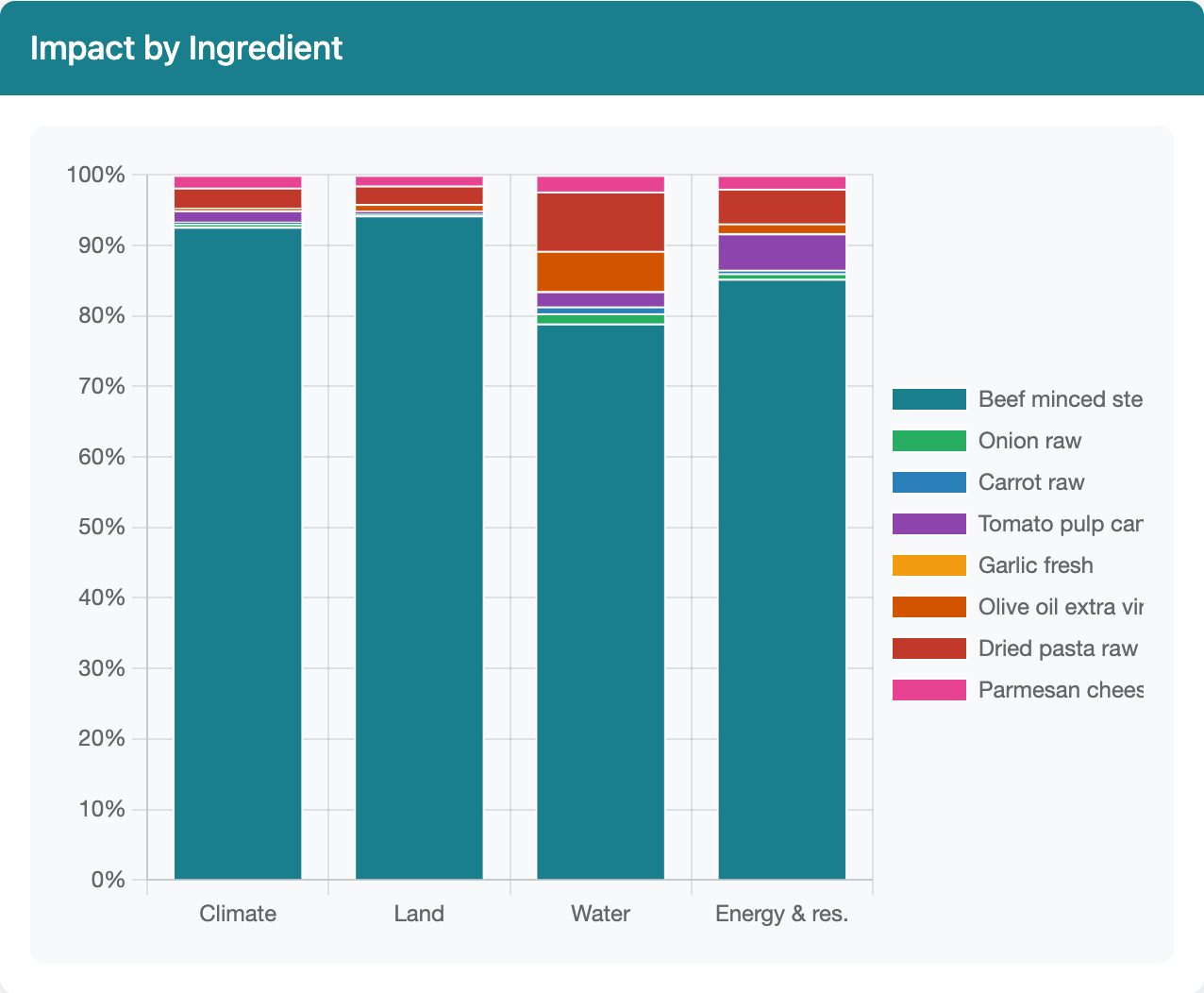
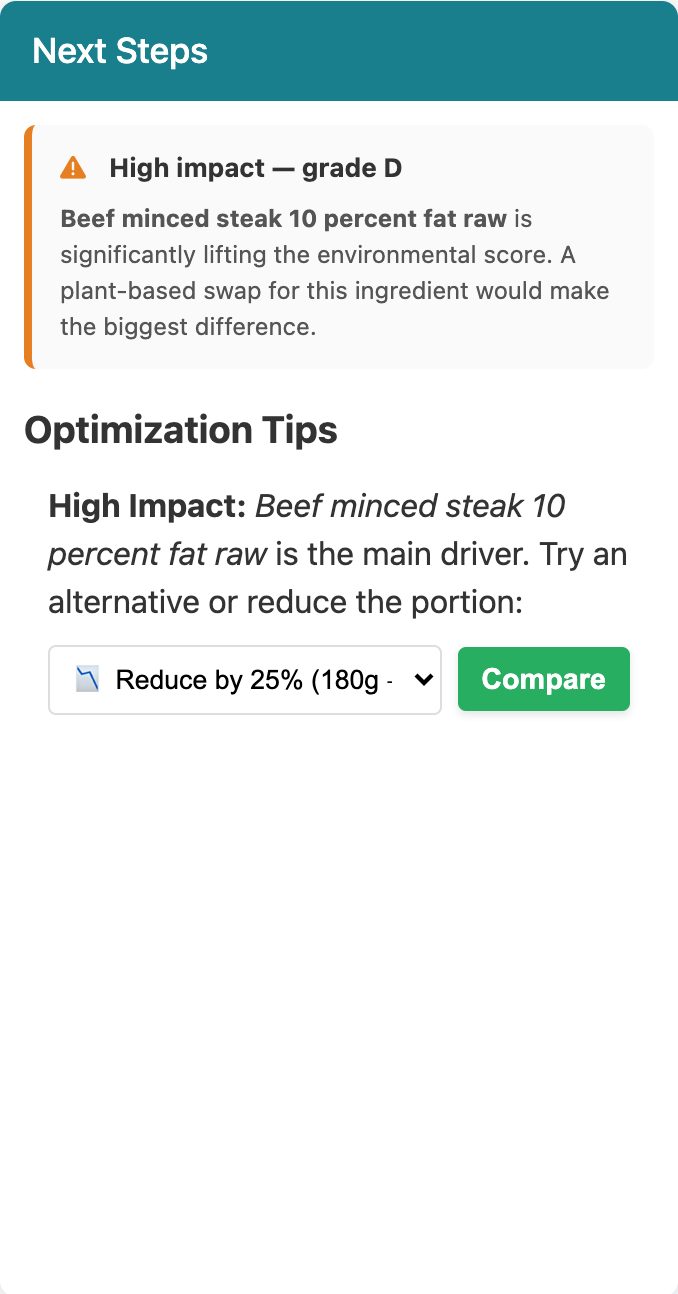
The Impact by Ingredient chart shows each ingredient's contribution. Next Steps explains the grade in plain words, and Optimization Tips suggest swaps; press Compare on a tip to try one.
5.5 Lite and Pro view PRO
Pro users have a Lite | Pro switch above the analysis. Pro view adds all 16 environmental indicators; Lite keeps the screen simple.
6. Nutrition results and labelling markets
Nutrition labels differ from country to country: which nutrients are listed, the reference values, the rounding, the front-of-pack scheme and the allergen list. CHEF shows the dish under the rules of the market you choose. Everything is indicative: check against the current rules before using it on a pack or menu.
6.1 Choose a market
Click the Nutrition tab of the recipe table. It opens the list of markets; pick one and the table switches to the Nutrition view. The tab shows the market you are using (for example EU), and CHEF remembers it next time. Europe is the default.
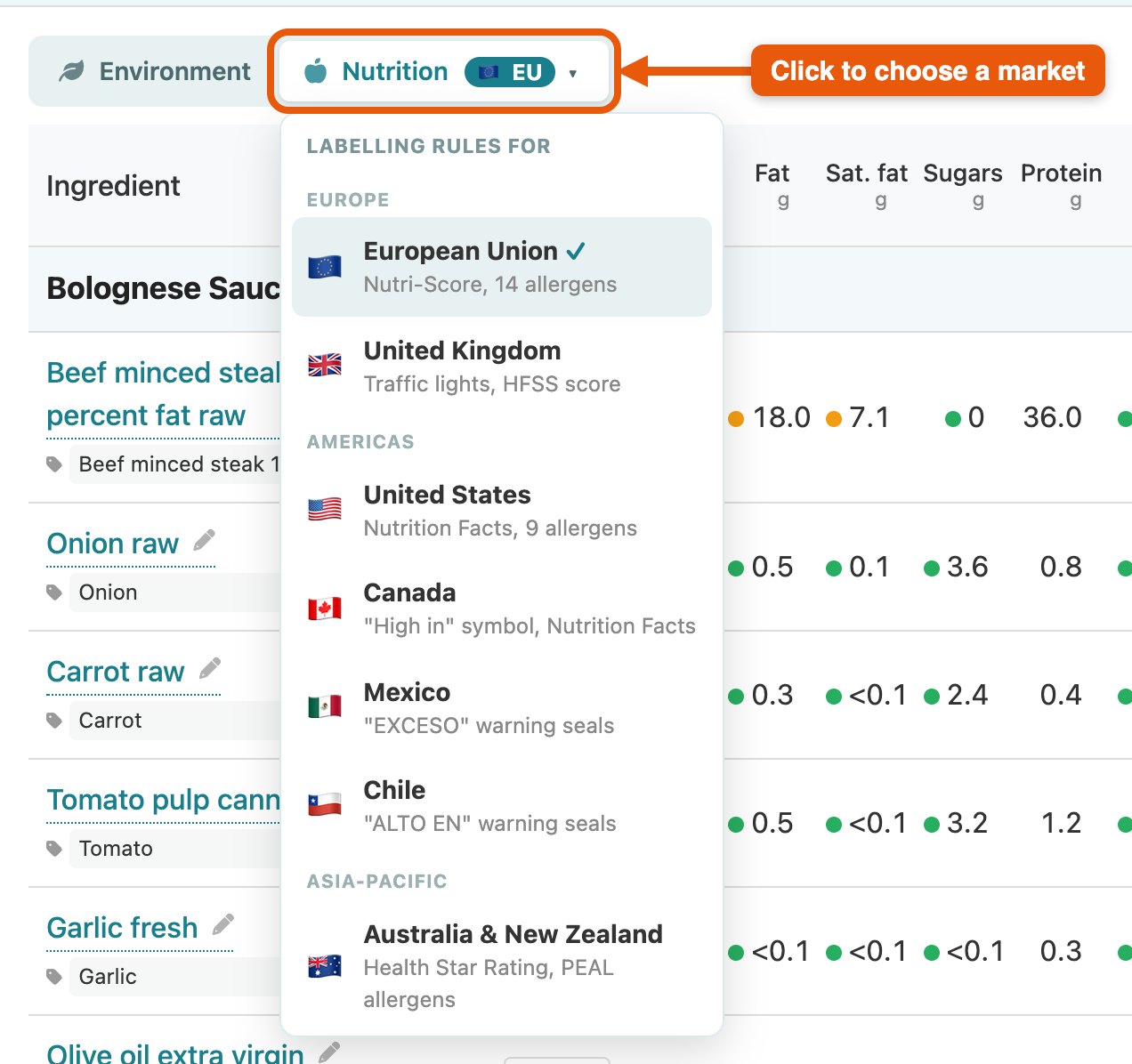
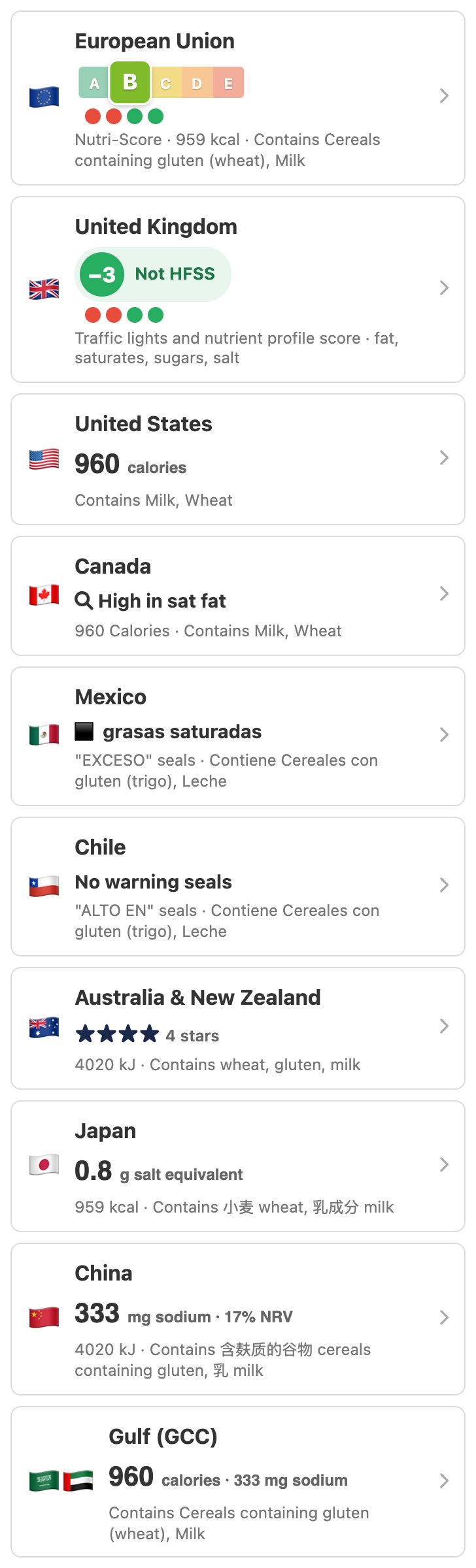
The 10 markets are the European Union, the United Kingdom, the United States, Canada, Mexico, Chile, Australia & New Zealand, Japan, China and the Gulf (GCC). All markets, at the bottom of the list, compares them side by side (section 6.4).
6.2 The Nutrition tab
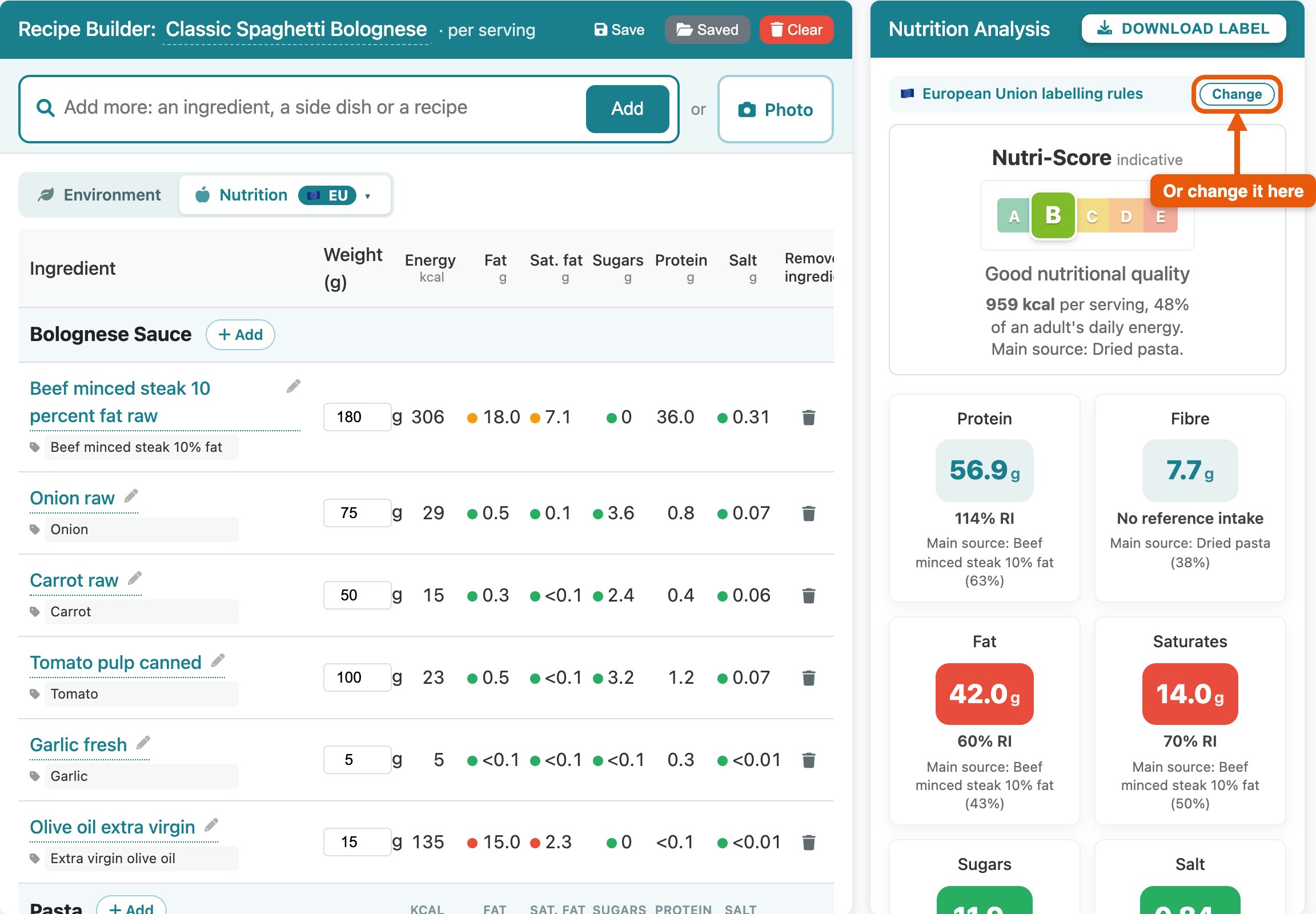
The recipe table shows what each ingredient adds to one serving: energy, fat, saturates, carbohydrate, sugars, fibre, protein and salt. Dots on fat, saturates, sugars and salt use the UK traffic-light thresholds for that ingredient. Hover a figure to see its share of the dish. The bottom row is the dish total with its % of an adult's Reference Intake.
On this tab the right-hand panel becomes Nutrition Analysis. At the top it names the market, then shows that market's score or front-of-pack scheme, the energy, and cards for the main nutrients with their main source. Red, amber and green warn about fat, saturates, sugars and salt.
6.3 What each market shows
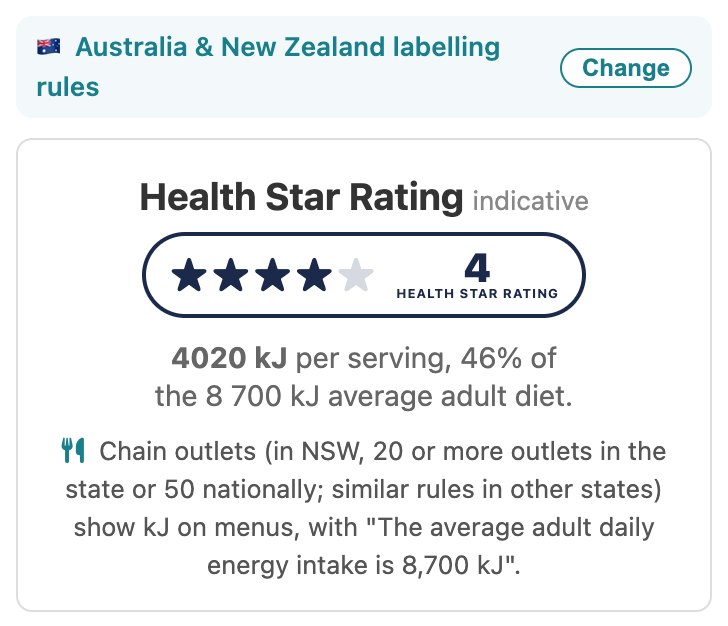
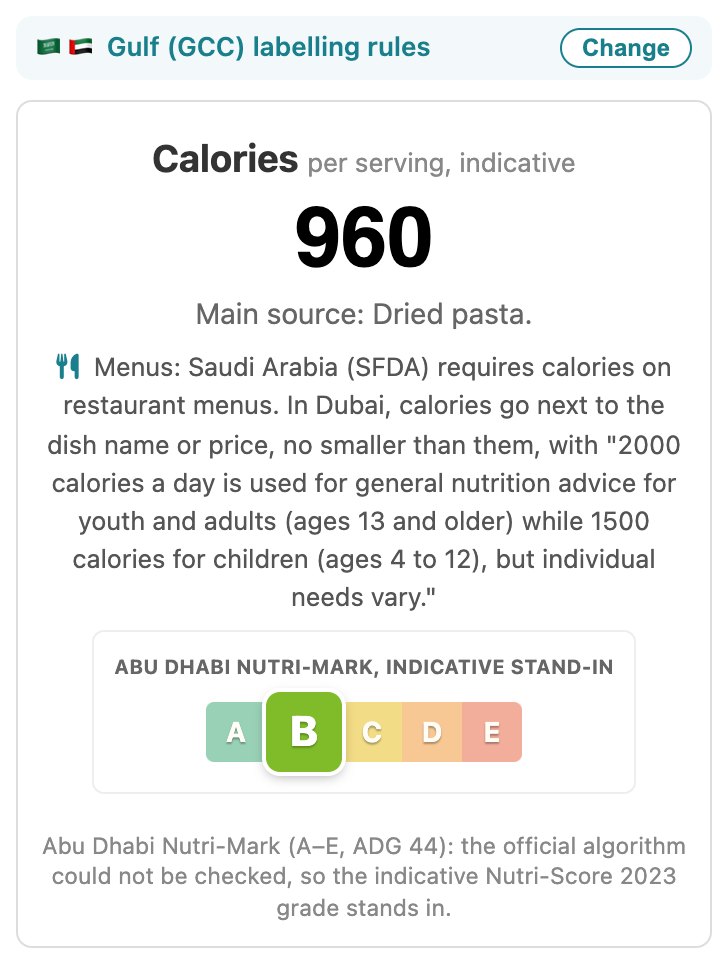
The top of the Nutrition Analysis panel changes with the market. Six examples for the same bolognese:
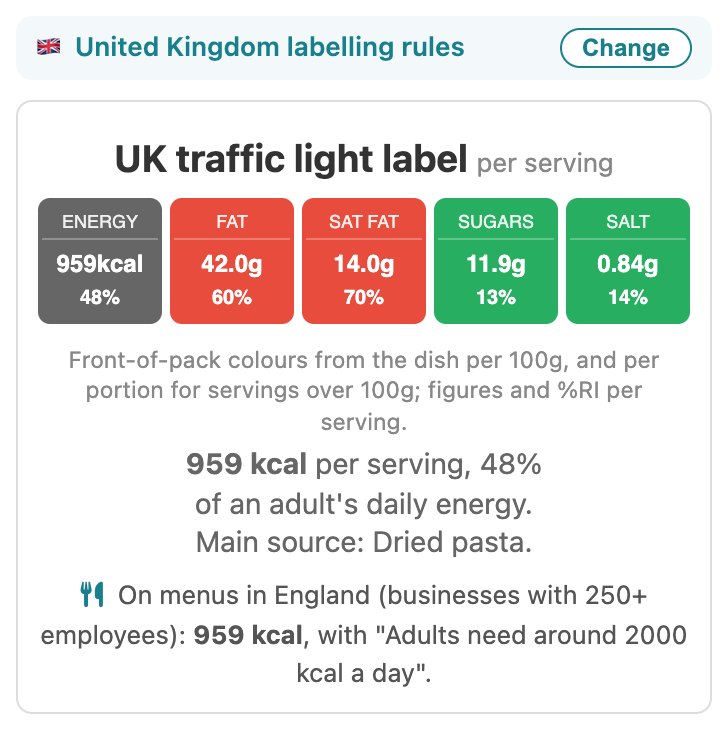
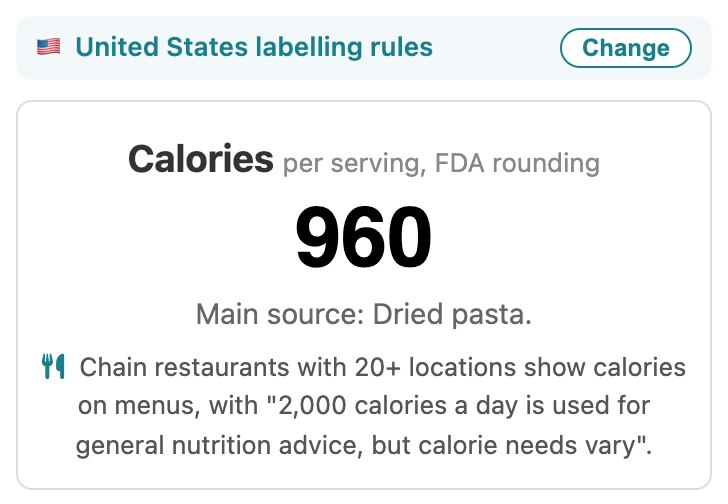
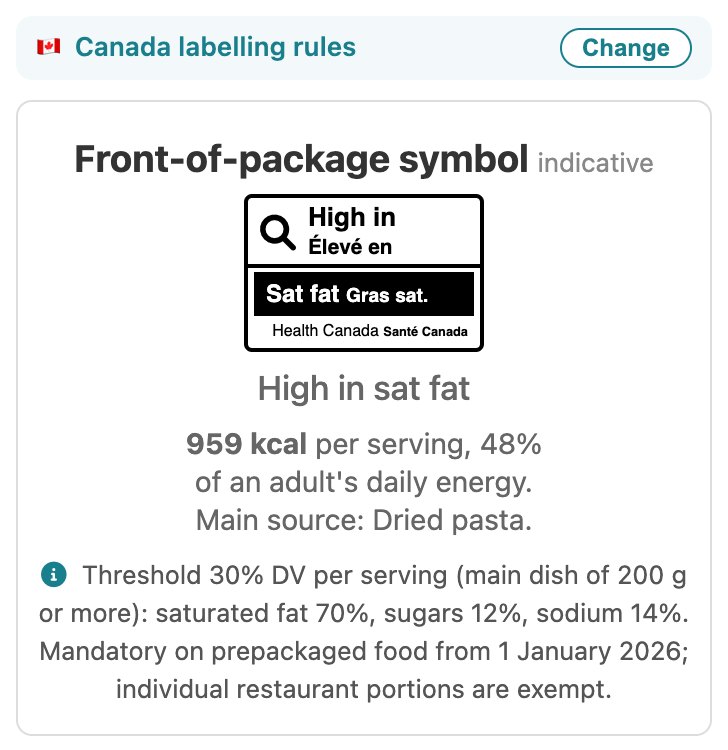
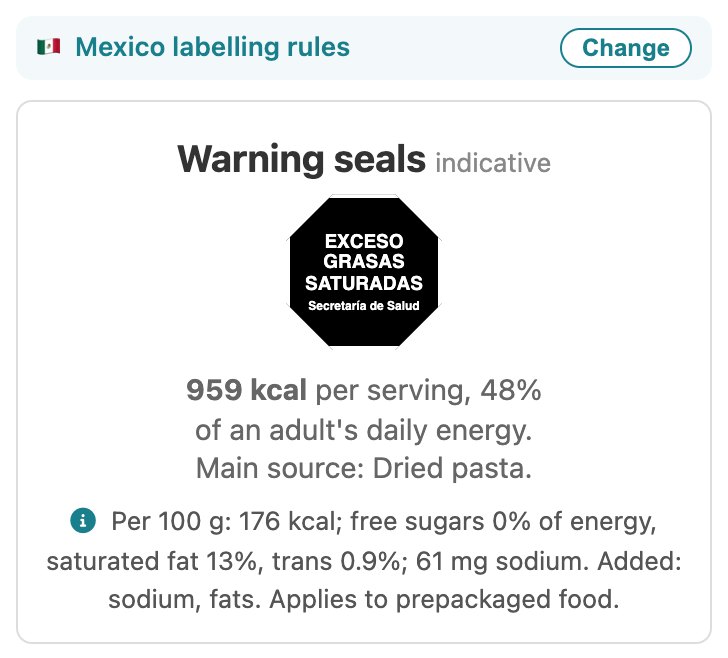
| Market | Score or front of pack | Nutrition table and allergens |
|---|---|---|
| European Union | Nutri-Score (A–E) | EU declaration per 100 g and per serving with %RI; 14 allergens |
| United Kingdom | Traffic light label; nutrient profile (HFSS) score (section 6.5) | As the EU; England menu calorie wording |
| United States | Calories; no mandatory scheme | Nutrition Facts with FDA rounding and %DV (full panel PRO); 9 major allergens |
| Canada | "High in" symbol | Bilingual Nutrition Facts table; priority allergens |
| Mexico | "EXCESO" warning seals | Declaration per 100 g; NOM-051 allergens |
| Chile | "ALTO EN" warning seals | Declaration per 100 g and per serving |
| Australia & NZ | Health Star Rating | Nutrition information panel in kJ; "Contains" allergen summary |
| Japan | No mandatory scheme | Energy, protein, fat, carbohydrate and salt equivalent; 9 specified allergens |
| China | No mandatory scheme | Nutrition table with NRV%; 8 allergen categories |
| Gulf (GCC) | Calories; indicative A–E grade in place of Abu Dhabi's Nutri-Mark | Arabic and English Nutrition Facts; Codex allergens; pork and alcohol always shown |
Where a market's seals or symbols count only what was added (sugar, salt, fat), CHEF works that out from the ingredient names. The methodology lists the rules and sources for each market.
6.4 Compare all markets
Choose All markets at the bottom of the list to see every market's headline for the dish in one column. Click a market to open it.
6.5 UK nutrient profile (HFSS)
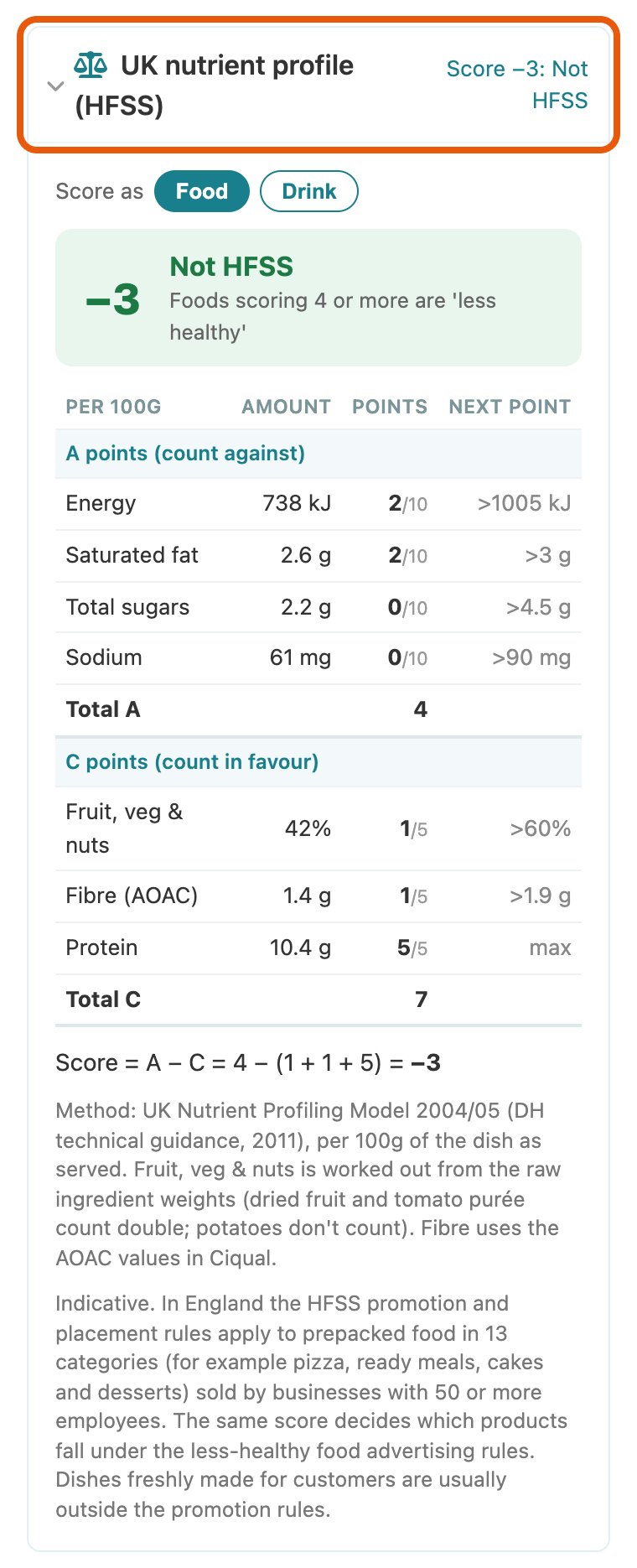
For the UK, the UK nutrient profile (HFSS) section under the cards scores the dish with the UK Nutrient Profiling Model. Click it to open the points: A points (energy, saturated fat, sugars and sodium) count against the dish, and C points (fruit, vegetables and nuts, fibre and protein) count in its favour. A food scoring 4 or more, or a drink scoring 1 or more, is "less healthy" (HFSS). Use Food or Drink to choose how it is scored. The Next point column shows how close each nutrient is to its next point, which helps when changing a recipe.
6.6 Nutritional Profile
The nutrition table follows the market: per 100 g and per serving with %RI for the EU and UK (plus any vitamins and minerals at 15% of their reference value or more), Nutrition Facts for the USA, and so on. Underneath are the market's front-of-pack labels.
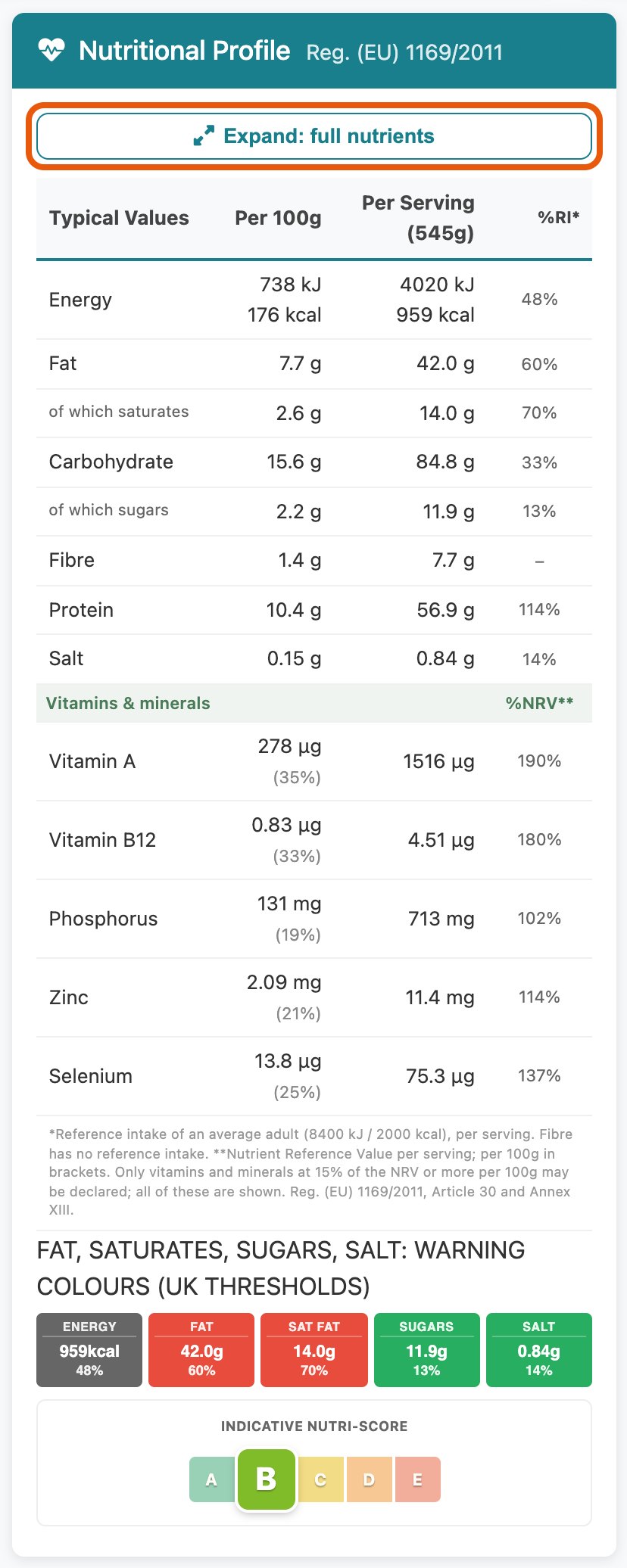
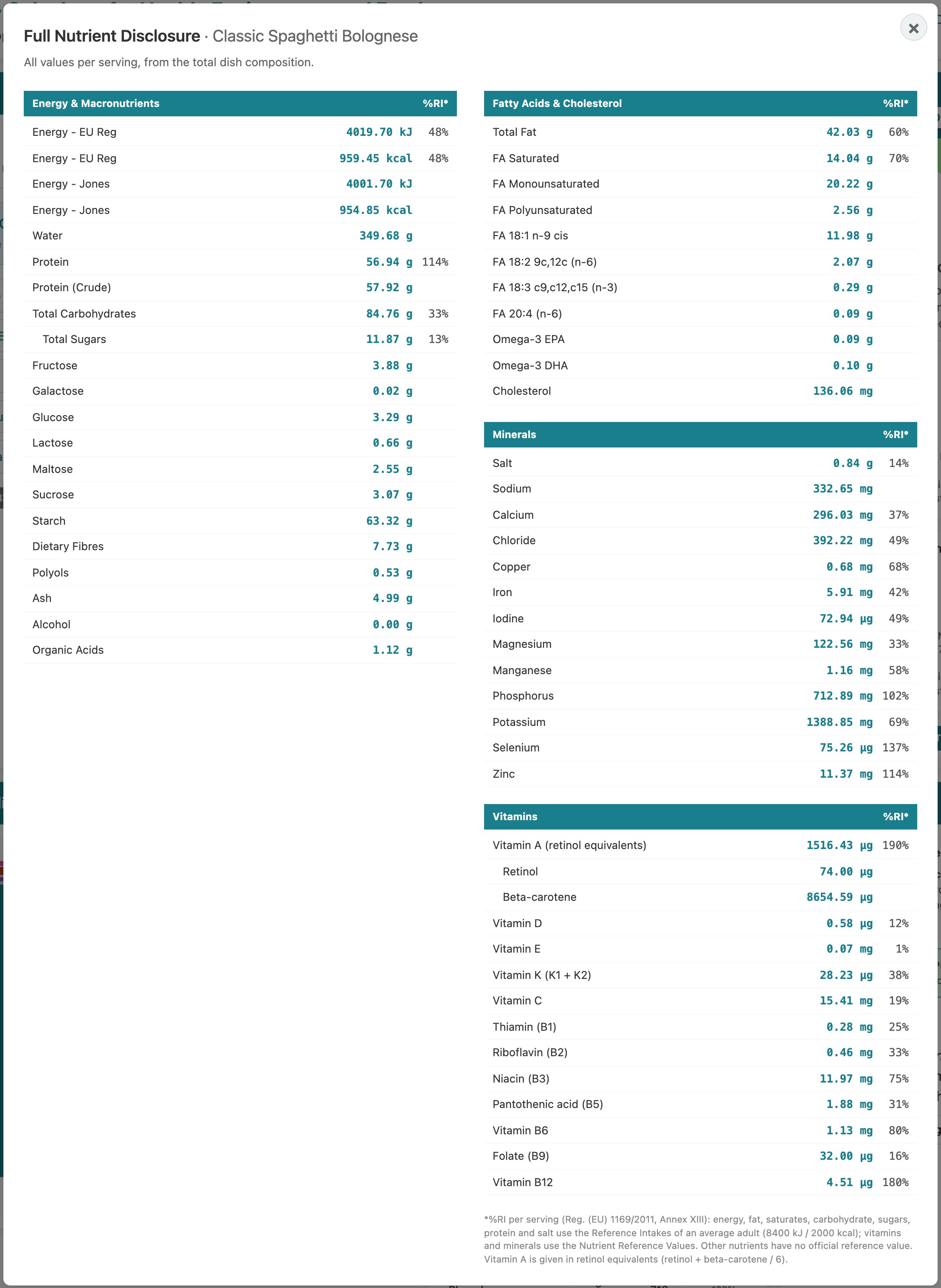
6.7 Full nutrient breakdown PRO
Press Expand: full nutrients above the nutrition table to open every nutrient (energy, sugars, fatty acids, minerals and vitamins) with %RI. For the USA, the full Nutrition Facts panel is in the Nutrition Analysis panel.
7. Allergens, cooked weight and batches
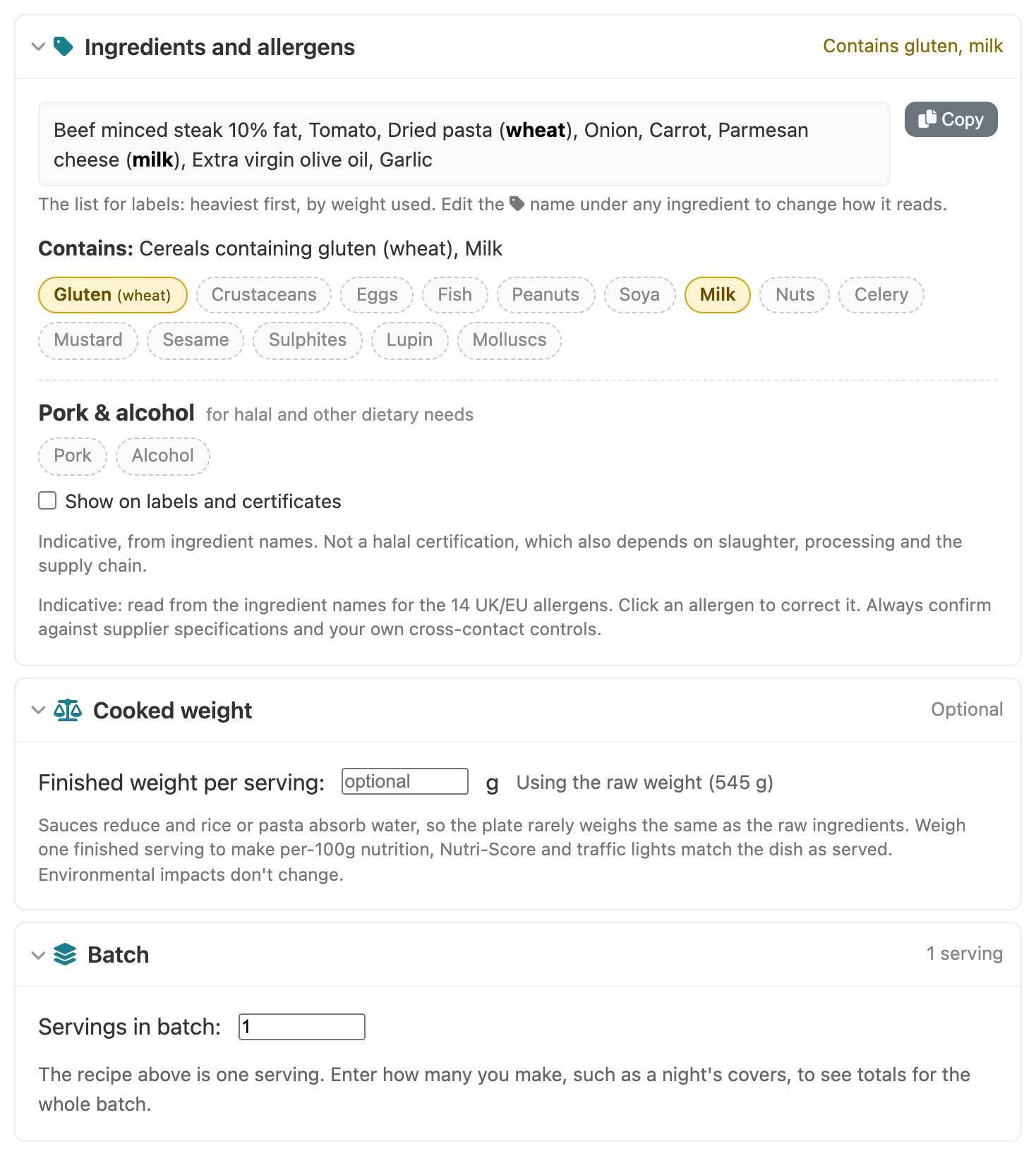
Three folding sections under the recipe table hold optional details. Each shows a one-line summary when closed.
7.1 Ingredients and allergens
- The ingredient list for labels, heaviest first, with allergens in bold. Copy puts it on your clipboard.
- The 14 UK/EU allergens, detected from the ingredient names. Click an allergen to add or remove it if the detection is wrong. Prepared products such as stock are marked check label.
- The Contains line follows the market you chose (section 6.1): for example the 9 major allergens for the USA, or the Codex list for the Gulf. It is worked out from the 14 chips, so correct those to change it.
- Pork & alcohol, for halal and other dietary needs, work the same way: click to correct them. Tick Show on labels and certificates to print them on the Lite label and the Pro certificate. For the Gulf they are always shown.
7.2 Cooked weight
Sauces reduce and pasta absorbs water, so a plate rarely weighs what its raw ingredients did. Weigh one finished serving and enter it here: per-100 g nutrition, the Nutri-Score and traffic lights then match the dish as served. Environmental results don't change.
7.3 Batch
Enter how many servings you make, such as a night's covers, to see the totals and ingredient quantities for the whole batch.
8. Labels, certificates and data
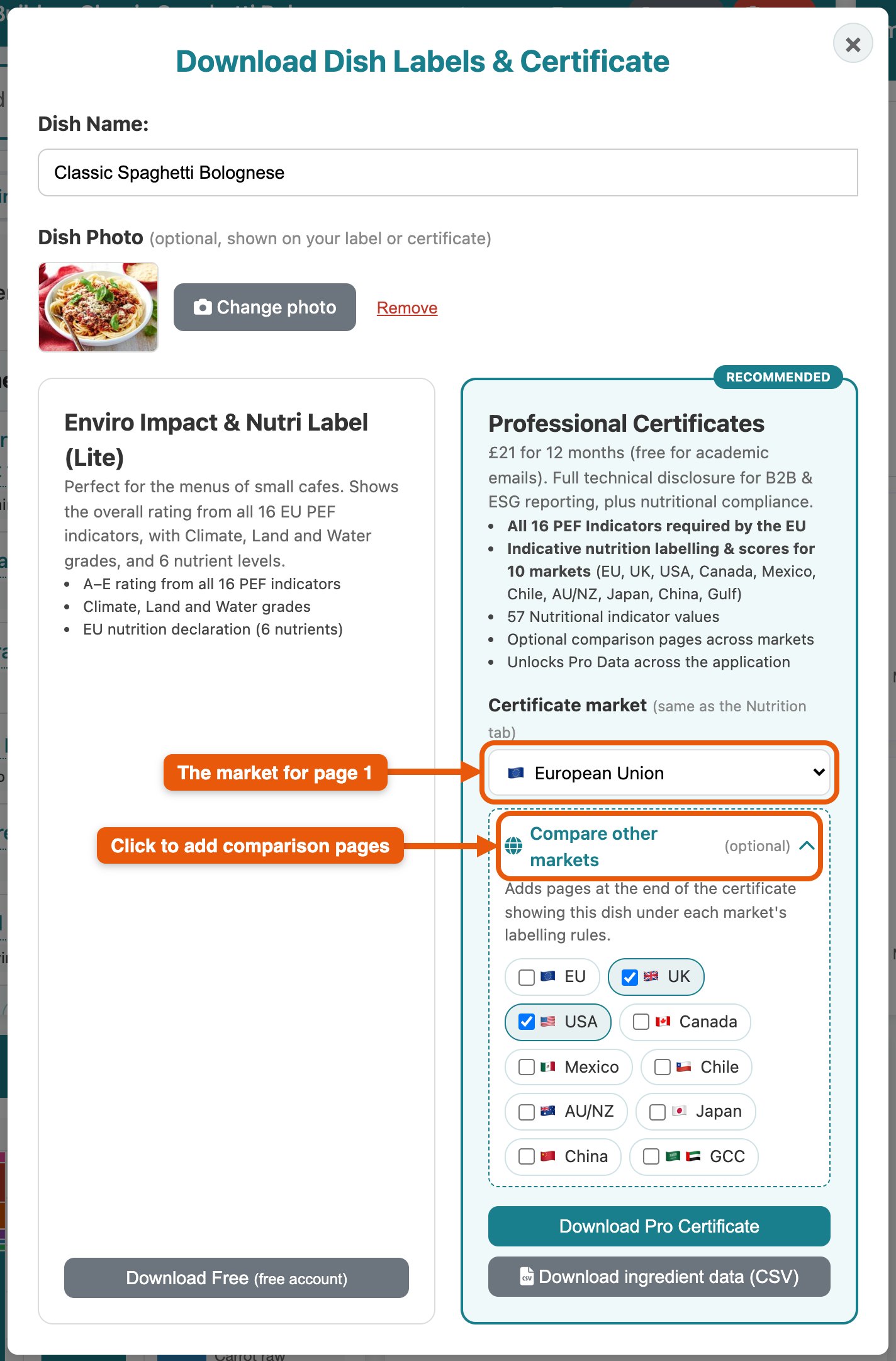
Press Download Label in the Impact Analysis panel. Check the dish name and, if you like, add a dish photo (one is filled in automatically for AI dishes and examples). Then choose the Lite label or the Pro certificate.
8.1 Lite label (free account)
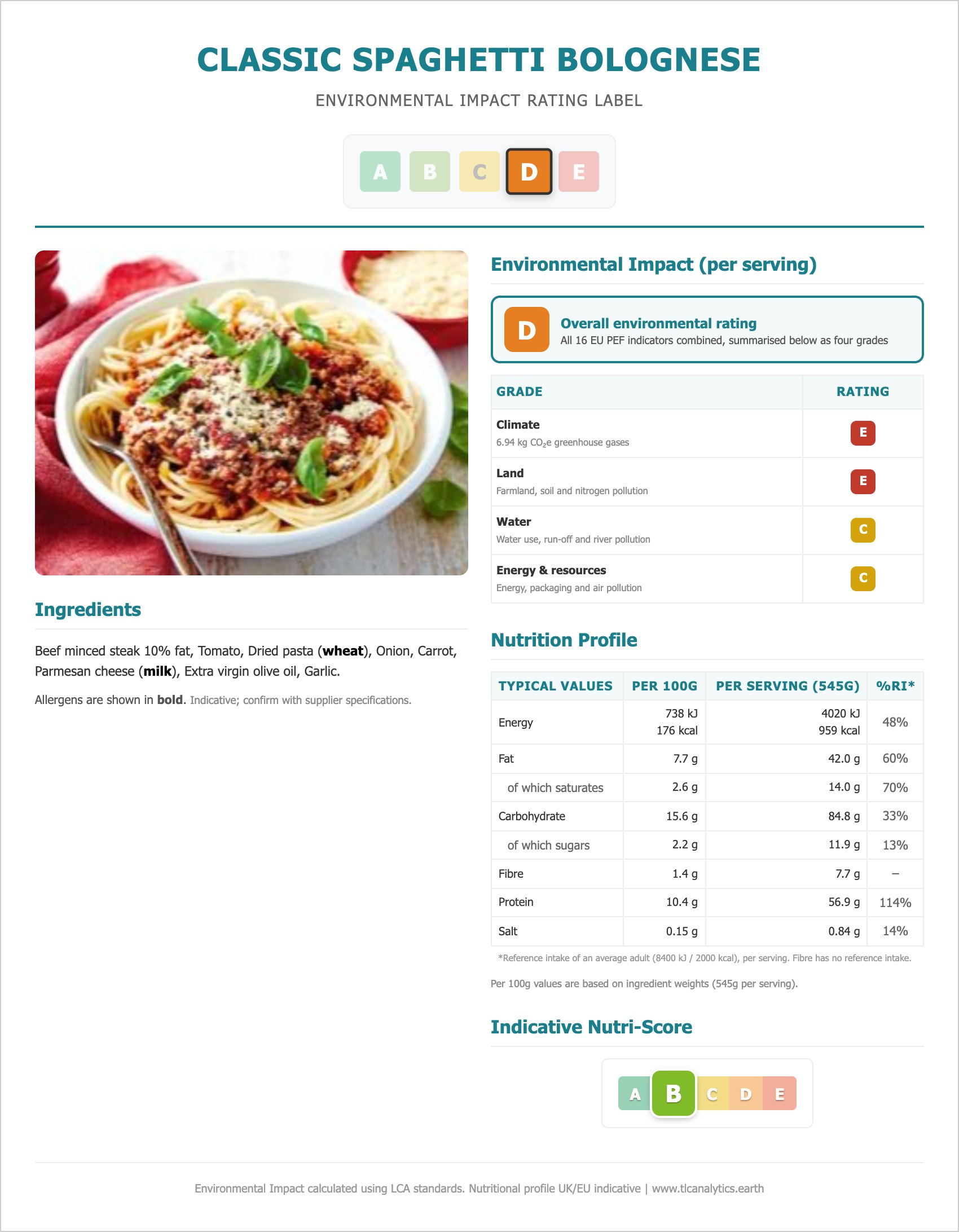
A one-page label for menus and counters: the A–E rating and the four area grades, the ingredient list with allergens in bold, the EU nutrition declaration and the indicative Nutri-Score. The Lite label always uses the EU rules, whichever market you chose; the other markets are part of Pro.
8.2 Pro certificate PRO
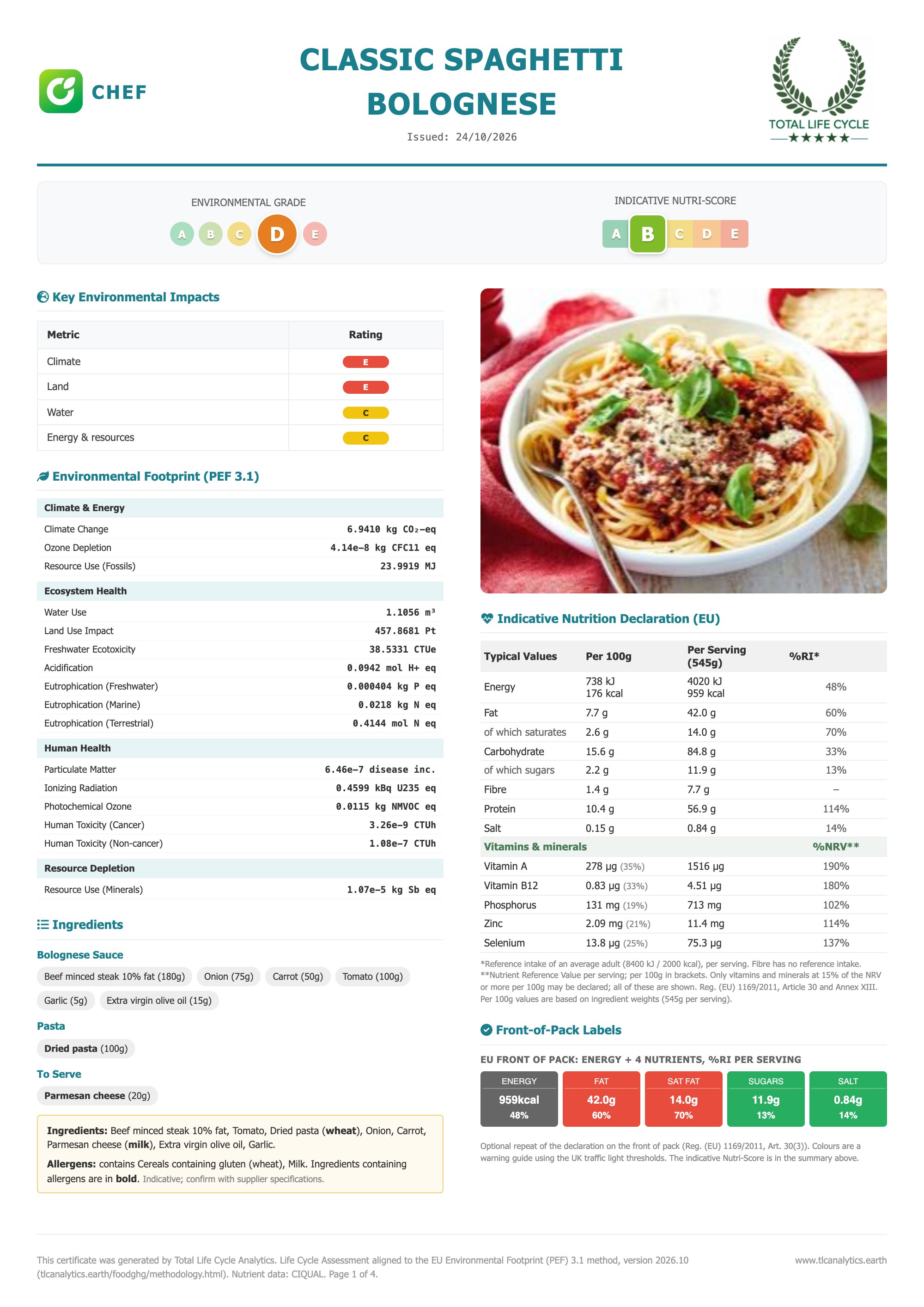
A PDF for buyers, reports and coursework, for the market under Certificate market in the Pro card (the same as the Nutrition tab, unless you change it there):
- Page 1: the environmental grade and the market's headline score, the four grades, all 16 PEF indicators, the ingredients and allergens (in that market's form), the market's nutrition declaration and its front-of-pack labels.
- Page 2: the full nutrient disclosure.
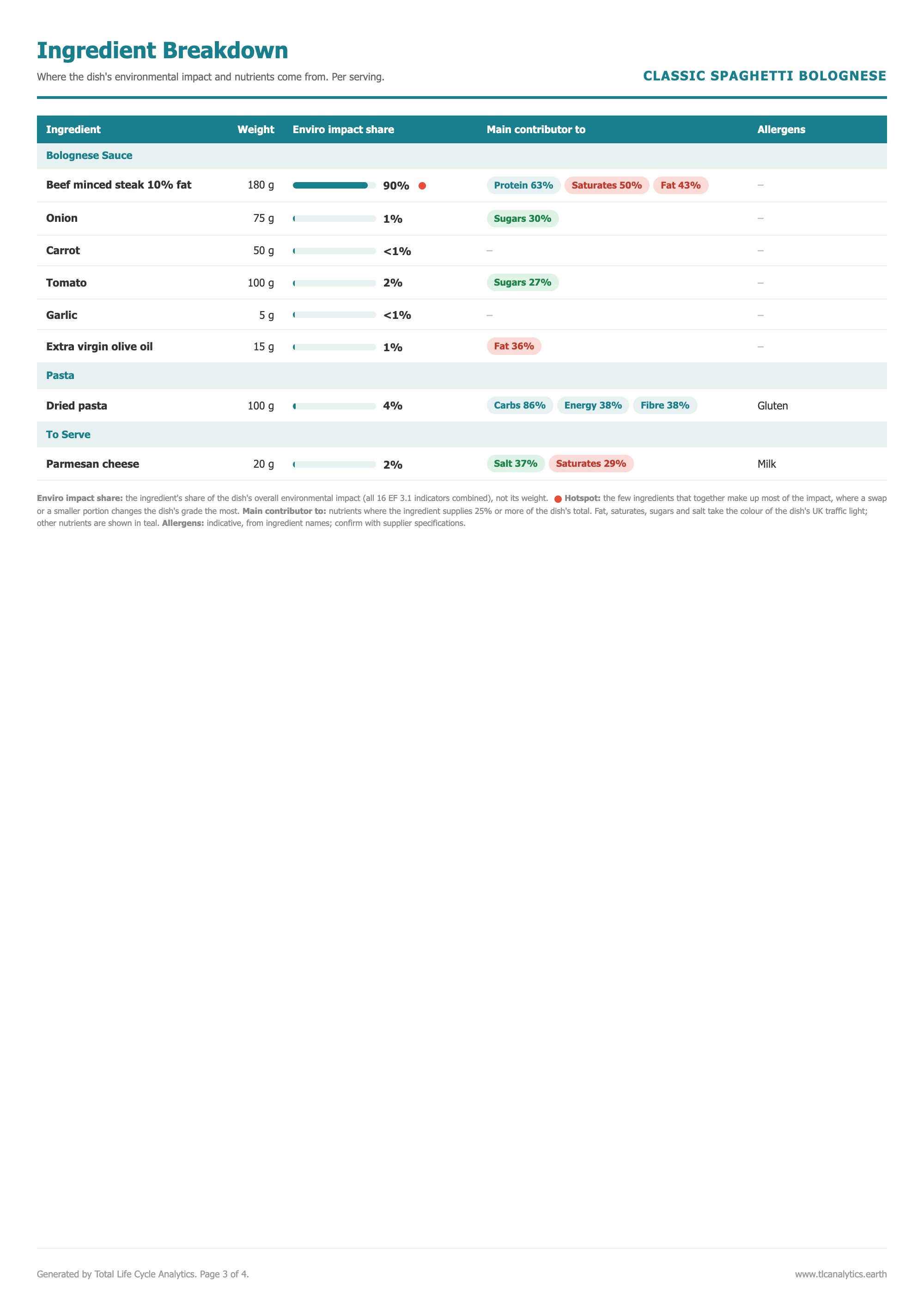
- Page 3: the ingredient breakdown: each ingredient's weight, its share of the environmental impact (with a red dot on the hotspots), the nutrients it mostly supplies, and its allergens.
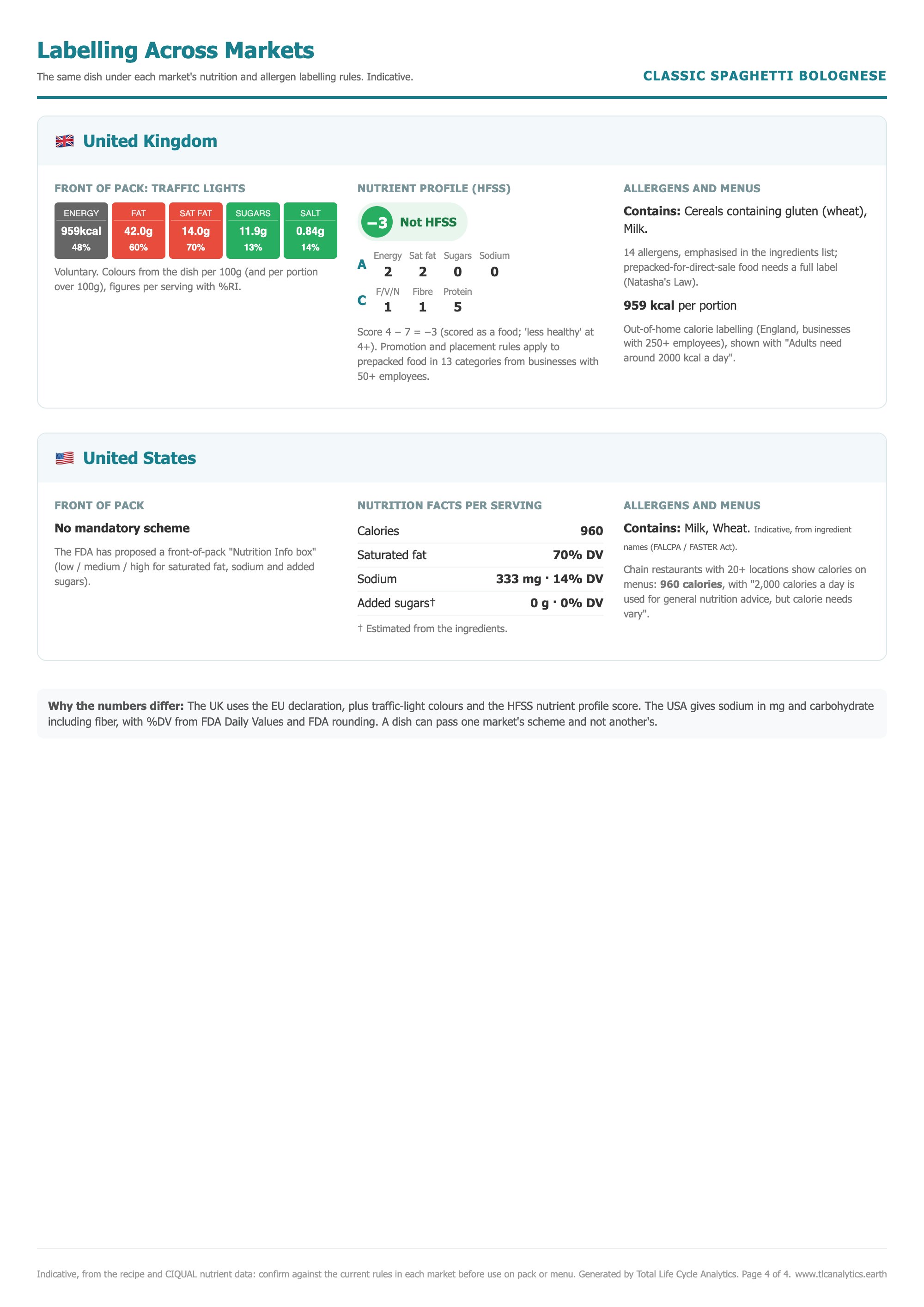
- Comparison pages (optional): click Compare other markets in the Pro card and tick the markets you want. Each gets a card showing the dish under its rules: front of pack, the key figures, and its allergen and menu rules. Three markets fit on a page, with a note on why the numbers differ.
8.3 Ingredient data (CSV) PRO
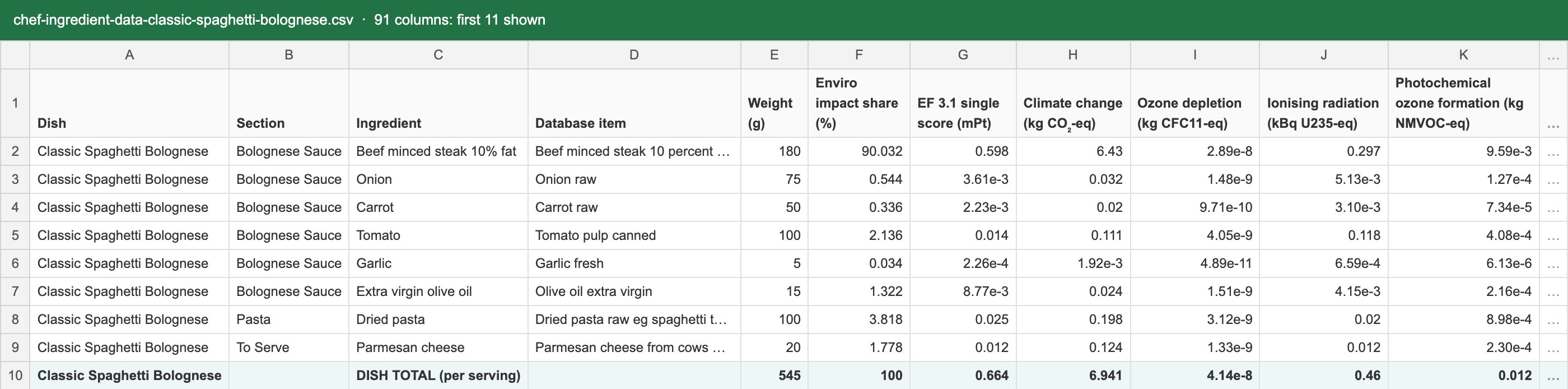
Download ingredient data (CSV) in the download window gives a spreadsheet with one row per ingredient: weight, impact share, all 16 environmental indicators, all 66 nutrients and allergens, with a dish total row. Ideal for your own analysis.
9. Saved recipes and the Menu Overview
9.1 Saving
Saved recipes live in this browser on this device, not on our servers. They don't follow you to another computer, and clearing your browser data deletes them. Download the Menu Overview CSV now and then as a backup.
9.2 The Menu Overview
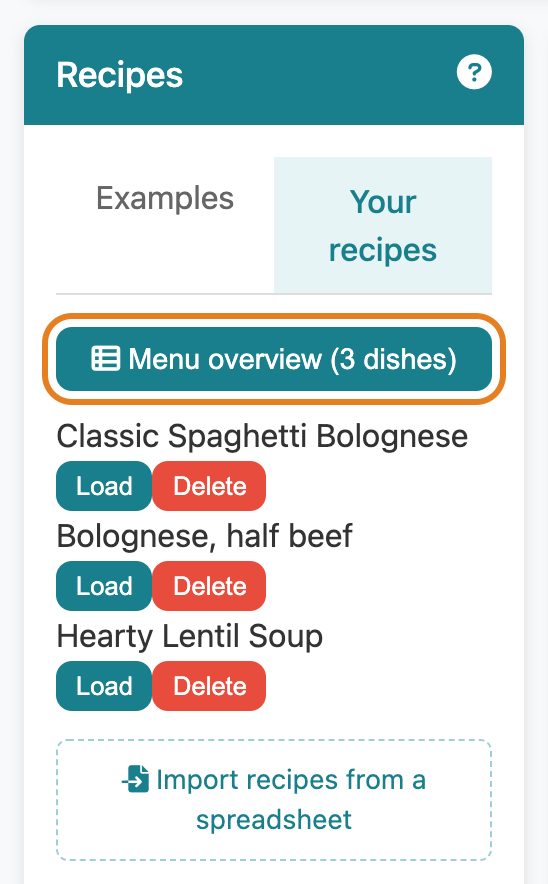
In the Recipes panel on the left, open the Your recipes tab and press Menu overview at the top of your saved dishes. It shows all saved dishes in one table, per serving:
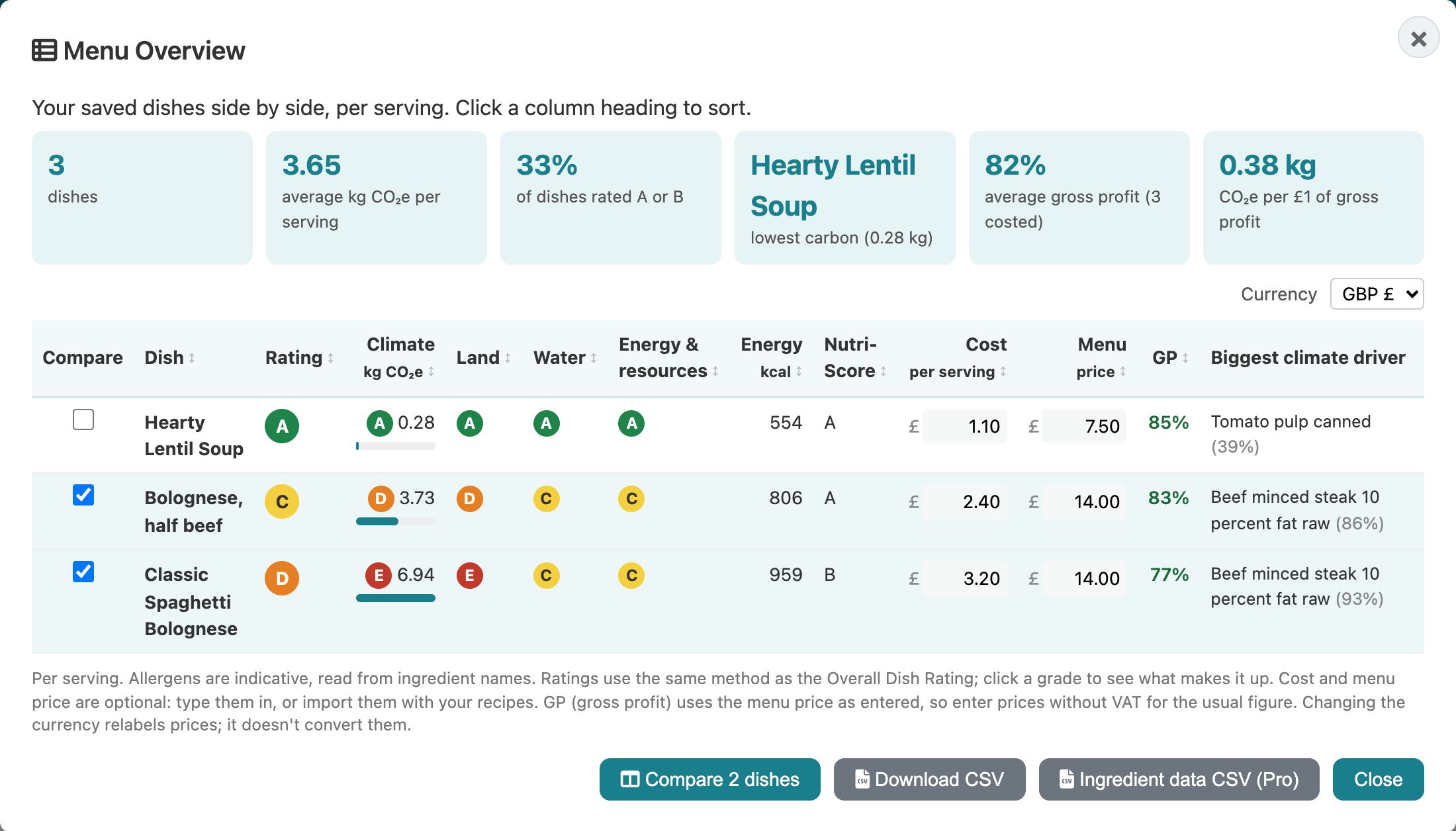
- rating, Climate (kg CO₂e), Land, Water, and Energy and resources grades: click a grade to see what makes it up;
- energy, Nutri-Score, biggest climate driver and allergens;
- cost per serving, menu price and gross profit (GP): type them in or import them. Enter prices without VAT for the usual GP figure. The currency can be pounds, euros or dollars;
- summary cards: average kg CO₂e, share of dishes rated A or B, the lowest-carbon dish, average GP and kg CO₂e per £1 of gross profit.
Click a column heading to sort, and Open to load a dish. Download CSV exports the table; Ingredient data CSV PRO exports every ingredient of every dish.
9.3 Compare two dishes PRO
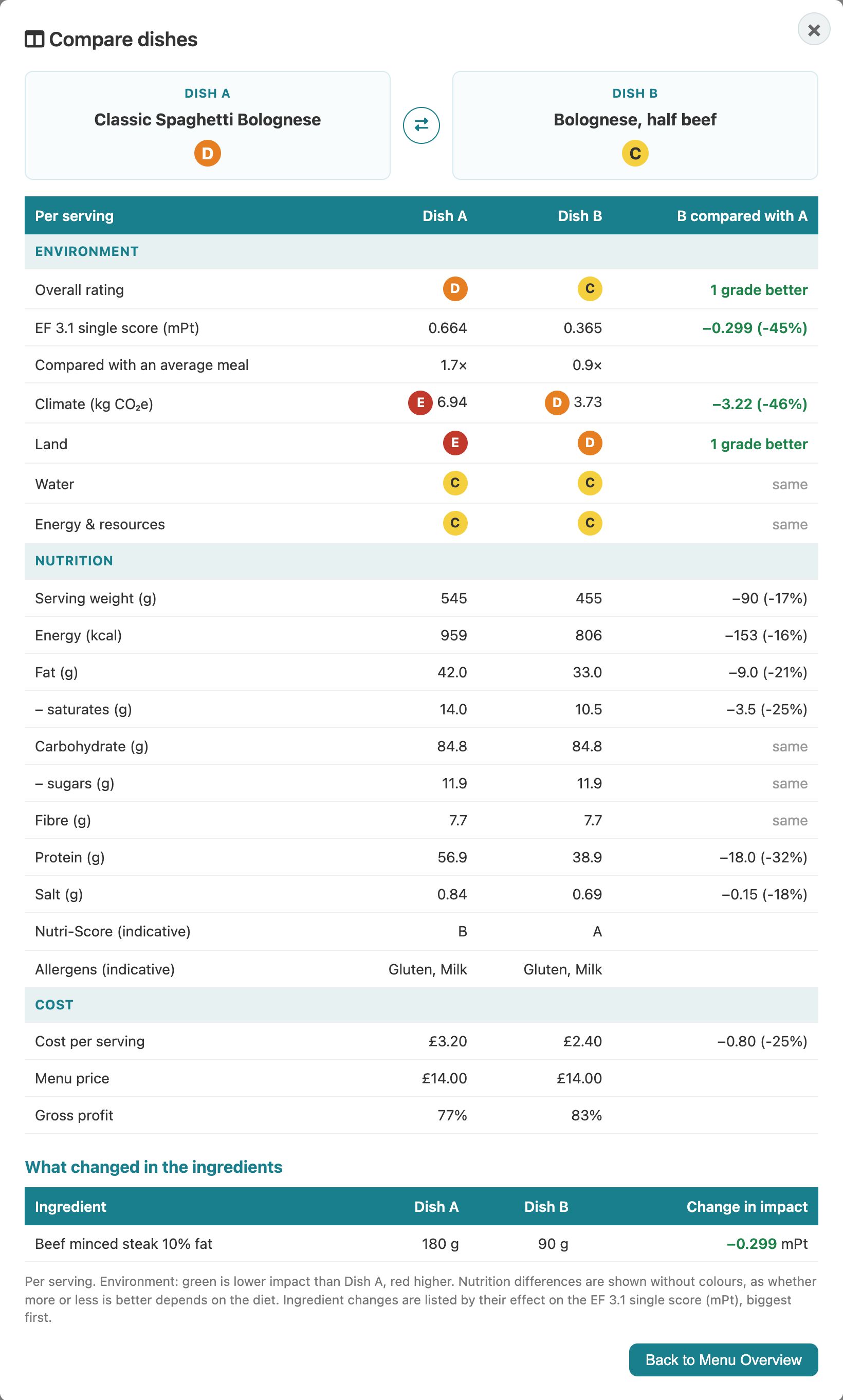
Tick two dishes in the Compare column and press Compare 2 dishes. You'll see both side by side with the difference for every grade, the climate figure, the label nutrients, the Nutri-Score, allergens and cost, plus What changed in the ingredients, biggest effect first. Environmental differences are green when Dish B is lower and red when higher. Press to swap A and B.
10. Your account
- Sign in: press Sign in at the top and enter your email. We email you a 6-digit code; there is no password. You stay signed in on that device for up to 180 days.
- Pro: choose Pro in the download window, sign in, and pay £21 on Stripe's secure page. Pro starts straight away and lasts 12 months, with a reminder email before it ends. Renewing early adds the new year to the end of the current one.
- Academic access: sign in with an ac.uk, sch.uk or edu address and Pro is free. If your institution uses a different address, request access through the link under the Pro button in the download window.
- College access code: if your college has given you a code (such as EXETER-7KQ2MX), open the link in the email, or press Unlock Pro and choose Have a college access code?. Enter your email and press Activate, then type the 6-digit code we email you. Pro is on straight away, until the date your college's code allows.
- Privacy: see our privacy policy. To delete your account, email info@tlcanalytics.earth.
11. Tips and troubleshooting
- Check the matches. Results are only as good as the ingredient matches; a wrong match changes everything. Click a name to swap it.
- Organic: organic versions are only used when you ask for them, for example organic beef mince.
- Spices and yeast use estimated environmental values, because the source database doesn't cover them individually.
- Portion size matters. Ratings are per serving and compared with a main meal, so starters, sides and desserts usually score better than mains.
- Lost recipes? They are stored in the browser you used. Try the same browser and device, and don't use a private window when saving.
- Numbers differ between markets? That's expected: each market has its own reference values, rounding and rules. Check that the Nutrition tab shows the market you mean.
- Pro features not showing? Check you're signed in (top of the page). Refresh the page after paying or signing in.
- Something looks wrong? Tell us through the contact form, with the dish and ingredient.
12. Find out more
- FAQ: why CHEF exists, what the indicators mean and how to reduce impacts.
- Methodology: how the grades and scores are worked out, and the rules and sources for each labelling market.
- Example dish gallery.